Which version am I looking at?
A storefront running experiments is several storefronts wearing one URL. The overlay answers the question that raises: open it on any page of your store and see exactly which version of everything you're seeing, and why.
Once a store is running experiments, a strange thing becomes true: the same URL is quietly several different pages. One visitor’s product page carries a test price. Another’s carries a different template. A third is on a theme variant. All of them typed the same address.
That’s the whole point, of course. But it creates a very practical question for the person who owns the store, and for me when we’re looking at it together: which version of this page am I looking at right now? If you can’t answer that instantly, every conversation about a test starts with five minutes of guessing.
So there’s an overlay. Store owners open it right on the page itself, on any page of their store. How it opens, and how it’s protected, I’m deliberately keeping out of print: which tests a store is running is the merchant’s business, so access to the overlay belongs to the store owner, not to whoever reads this entry.
What it shows you
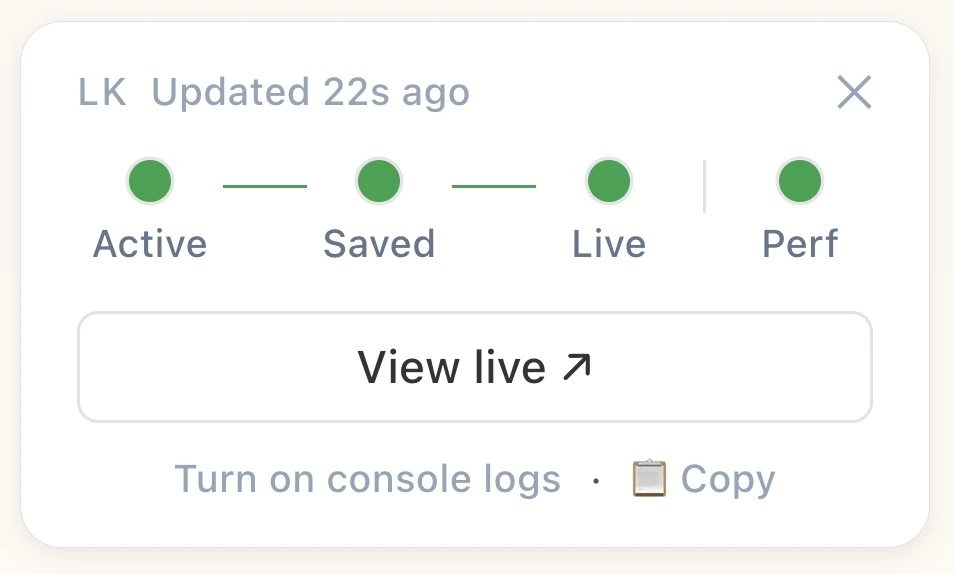
The Experiments section lists every mechanism active on the view you’re looking at, and which arm of it you’re in. It surfaces the experiments active on the page, so whatever is shaping the view, you see it in one place.
So when a merchant asks “is my homepage test live?”, we don’t check dashboards and compare notes. They open the overlay on their own homepage and read the answer off the page. When something looks off during a test, the first question (“which arm was that?”) answers itself, and we’re straight into the real conversation.
Nothing gets phoned home
The overlay reads the owner-visible state for the view you’re on. Opening it costs no server work, sends nothing anywhere, and doesn’t change what you’re seeing.
That design matters for a subtle reason: a diagnostic that makes requests can change the thing it’s diagnosing. This one can’t. What you see in the overlay is exactly what that page view was, with nothing perturbed by the act of looking.
From a question to a handoff
The overlay is also where an answer becomes a next step. A merchant’s own developer can flip on console logs and watch the decisions happen in detail, right there on the page. And anyone staring at a view that looks wrong can copy the whole picture, the relevant events plus a unique identifier for that exact view, and send it to me. That copy is everything I need to reconstruct what they saw: the identifier is the handle I use to pull up exactly what happened, so a support conversation starts from evidence instead of another round of “can you screenshot it again.”
Where it came from
The overlay is the client-facing descendant of a debug bar I built for myself back in March, when the platform was young and I needed to see cache status and deploy info on live pages without touching them. That one was admin-only. As experiments arrived and pages became several-pages-in-one, the “what exactly am I looking at” question stopped being an internal question, so the answer stopped being an internal tool.
There’s a small principle in that. As the machinery under a store gets more sophisticated, the store owner’s view of it should get simpler, not murkier. The overlay is exactly that: all the invisible decisions on a page, made visible, on demand, to the person the store belongs to.
What’s next in the log
Experiments you can see are experiments you can trust. The next entries cover the same idea from the other side: what it took to activate and stop tests without deploying anything, and the honest follow-up on what four months of production did to our favorite latency number.
LayerKick layers onto your existing Shopify theme and serves it from Cloudflare's edge. If anything goes wrong, traffic passes through to Shopify like we were never there. The fastest way to understand it is to watch it run on your own storefront, and the waitlist is the way in.